
3. Basic Operation
3.1 Knobs and Faders
Drag knobs and vertical faders up or down. The mouse wheel also changes values. Hold Shift or Ctrl (Command on macOS) for finer adjustment. Ctrl / Command-click restores the default.
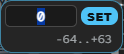
Click a value readout or double-click the control to enter a number. Press Enter or SET to apply it. Press Esc or click outside the pop-up to cancel.
3.2 Selectors and Dimmed Controls
Right-click anywhere within an operator's area to toggle that operator On / Off. Right-click again to turn a disabled operator back on.
Hold Ctrl (Command on macOS) or Shift and right-click anywhere within an operator's area, or click the operator number bar at the left end, to solo that operator; the other operators turn Off. Do the same on the soloed operator to release the solo and turn every operator back On.
Click the choices for Wave Form, Ratio / Fixed, Mono / Poly, and other selectors. Click the Algorithm diagram to choose one of eight connections.
A dimmed control is unavailable or has no effect under the current conditions. Examples include Fixed Range in Ratio mode and OP1 EG Shift. Click the label's hint to check the condition.
3.3 Hints and Language
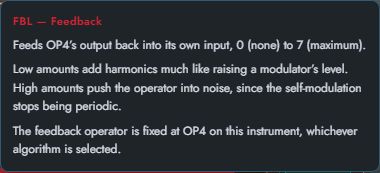
Click a parameter label to open its explanation. HINT → Eng / Jp changes the hint language. Short English panel labels remain the same in both languages.
The book button under HELP opens the online manual or PDF. The PDF follows the selected hint language.
3.4 Copy and Paste
Modules with copy/paste icons can duplicate settings at that scope. Use them to copy operator or effect settings.
3.5 Navigating and Saving Presets
Click the preset name to open the library menu. The right end of the name field holds the folder name and the arrows; the arrows move to the previous or next preset in the same folder, and clicking the folder name opens a menu for that folder only. Save stores the current mode's preset. The Preset browser button to the right of Save lets you choose from a list while filtering by search and tags (Chapter 5, 5.7). Save edited sounds before selecting another preset if you want to retain the changes.
Drag the lower-right grip to resize the editor. Text and controls adapt to the available space; enlarge the window if you need a clearer view.