
5. Understanding Preset, Voice, and Performance
5.1 Voice and Performance
A Voice is one sound; a Performance is an arrangement of sounds for playing. The Single / Performance tabs switch modes.
| File | Extension | Main contents |
|---|---|---|
| Voice | .81v | Four operators, Algorithm, LFO, performance response; normal Save also includes Effects and Patch Volume |
| Performance | .81p | Eight embedded Voices, mixer, tuning/effect/Program Change tables, Effects, Patch Volume |
| Octave tuning | .81octtune | One octave of user tuning |
| Full tuning | .81fulltune | User tuning for 128 keys |
| Chord table | .81chord | Twelve pitch classes, four notes each |
| Program Change table | .81pctable | Mappings for 128 program numbers |
| MIDI Learn map | .s8m | CC assignments |
SysEx .syx and .mid files exchange data with the hardware. Use .81v / .81p to retain software-specific settings.
5.2 Saving a Voice
Edit in SINGLE and click Save in the preset bar. Choose a name and destination. The filename becomes the library name.
5.3 A Performance Embeds Its Voices
Loading a Voice into a part copies its sound data into the Performance. Later editing or moving the source .81v does not automatically change the saved Performance. The .81p includes the part Voices when transferred to another system.
Loading a Voice into a part imports its operator and LFO settings. The Voice's own Effects chain is not used. Performance has one shared Effects chain.
5.4 Moving Between Modes
Part Voices and the Single Voice are independent. Switching tabs does not copy edits between them.
To edit a part, choose Edit in Single… from its Voice menu. Confirm replacement of the current Single buffer, saving it first if needed. After editing, return to PERFORMANCE and choose Use current Single voice on the intended part. Then save the Performance.
5.5 Save Scope and DAW Projects
| Setting | Voice / Performance files |
|---|---|
| Sound and part settings | Included in the corresponding preset |
| Effects / Patch Volume | Stored per mode and included in normal Save |
| Master Volume / Master Tune / Polyphony | Not preset data; per-plug-in settings |
| Solo | Temporary audition state, not saved in a Performance |
| MIDI Learn | Separate map; retained in .s8m or the DAW session |
A DAW project stores the editing states of both Single and Performance, together with the current mode. Reopening the project activates the mode that was last in use.
5.6 Organizing the Library
Organize files in folders under Voices / Performances. The preset arrows navigate the same folder. After you load a preset from filtered results in the preset browser, they navigate those results instead (5.7). Save sounds made from built-in Init with your own names.
You can import Factory ROM A–D Voices from your own hardware. See Import in Chapter 11 for details.
5.7 Preset Browser
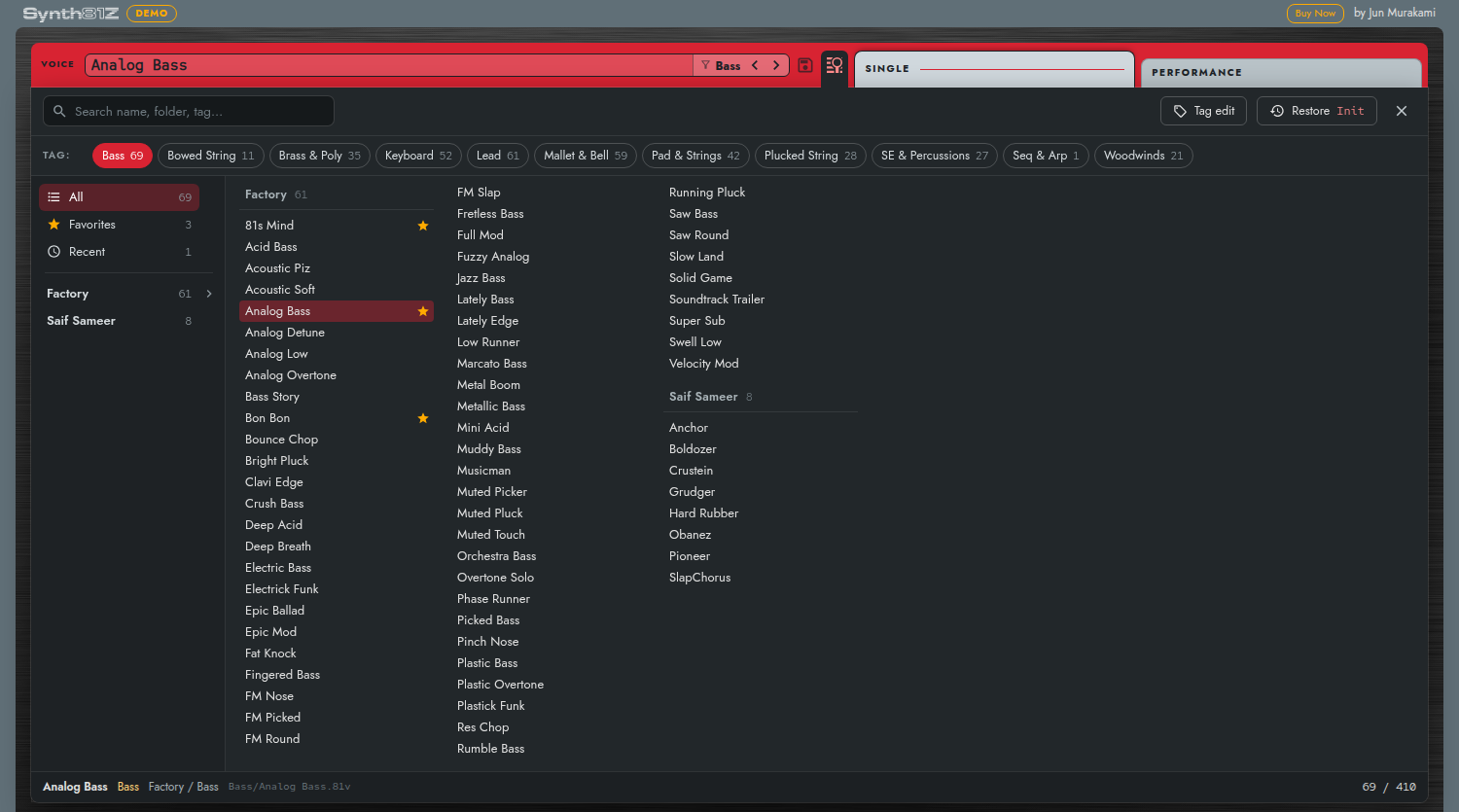
Press the Preset browser button to the right of Save in the preset bar to open the browser below the bar. It lists the whole library, so you can filter by search and tags and compare sounds as you play. Press the button again, or the × at the upper right, to close it.
Like the preset bar, the list shows Voices in Single and Performances in Performance. Change a Performance part's sound in the mixer's Voice column. Voices and Performances keep separate filters.
Filtering
| Item | Description |
|---|---|
| Search field | Matches part of the name, folder name, sound designer, and tags, ignoring upper and lower case. Words separated by spaces narrow the list to presets that contain all of them |
| TAG | Eleven tags that describe the type of sound (Bass, Bowed String, Brass & Poly, Keyboard, Lead, Mallet & Bell, Pad & Strings, Plucked String, SE & Percussions, Seq & Arp, Woodwinds). Selecting several shows presets that have any of them |
| Left column | All, Favorites (★), Recent, Factory (bundled), a folder for each sound designer, and User (presets you saved yourself). Click > to show the folders inside and choose a single folder |
The search field, TAG, and the left column combine, and only presets that meet all of them are shown. The number on each chip is the count you would get by choosing that chip under the other conditions. The bottom row shows the selected preset's name, tags, sound designer and folder, and file location, along with the number of filtered results and the total.
Auditioning and Choosing
- Clicking a row loads that preset immediately. The ↑↓ keys load the previous and next presets and the ←→ keys load the adjacent column, so you can compare them while playing.
- Enter keeps the current preset and closes the browser. Esc also closes it (the last preset you loaded stays loaded).
- Restore returns to the sound you had when you opened the browser, unsaved edits included. It is unavailable after you switch between SINGLE and PERFORMANCE with the browser open.
- Hover over a row to show a ★ at its right end; click it to add the preset to or remove it from Favorites. The row's right-click menu does the same.
- Recent lists up to 30 recently used presets, newest first. Loading alone does not add a preset: it is added after it has stayed loaded for 15 seconds, when you edit it, when you close the browser with Enter, or when you save. Loading a Voice into a Performance part does not count.
- ★ and Recent are per-user settings shared by every instance.
Tags
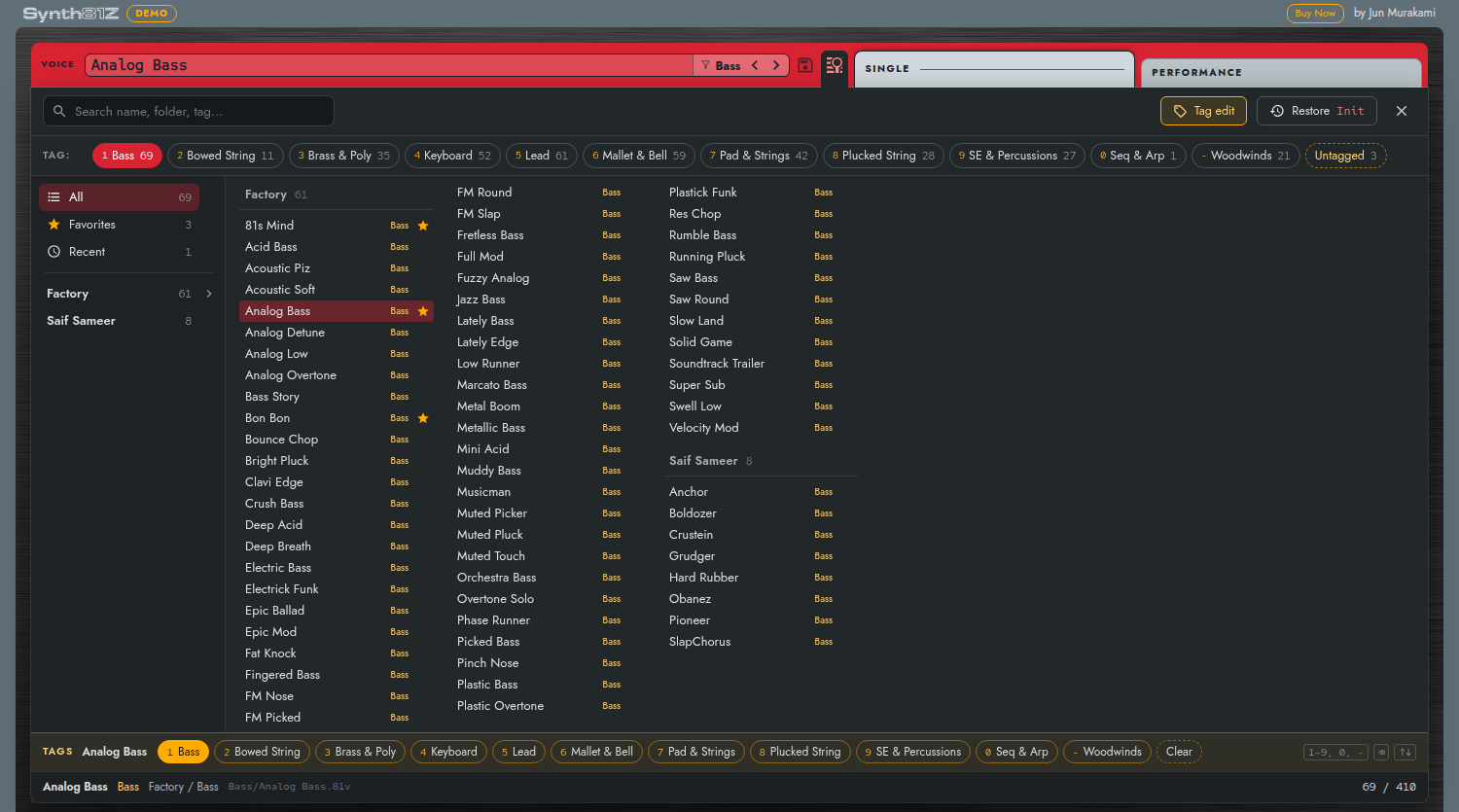
A preset uses the tags saved in its file (meta.tags in the .81v / .81p) if there are any. Otherwise one tag is taken from the folder name, or, failing that, from the abbreviation at the start of the name.
Press Tag edit to show each row's tags and a tag editing bar at the bottom. Toggle tags on the selected preset with the keys 1–9, 0, and - (in TAG order) or the buttons on the bar. A preset can have several tags. Backspace (or Delete), or Clear on the bar, removes them all. Use the ↑↓ keys to move on and keep tagging. While tag editing, Untagged appears in the TAG row so you can show only presets without tags. The row's right-click menu also toggles tags.
Tags are saved to the file each time you change them. The sound values and the file name do not change. Tags are kept when you overwrite the same file. The built-in Init and the Initialize Performances cannot be tagged.
Note
On the first start after an update, if a copy of a bundled preset in Documents has no tags, the bundled tags are added to it. Its sound values, file name, and any tags you added yourself are not touched.
When bundled presets are renamed (such as the Saif Sameer presets in Ver. 1.0.4), copies under the old names that you have not edited are replaced with the files under the new names. Copies you have edited and saved are kept, and presets you deleted are not restored.
Cycling Range of ◀▶ and MIDI CC

After you load a preset from filtered results in the browser, the preset bar's arrows cycle through those results instead of the folder. The folder name in the name field changes to a filter mark and the name of the filter (for example, Bass); click it to open the browser. MIDI CCs assigned to the arrows (Chapter 10, 10.3) cycle through the same range. Choosing a preset from the preset bar's menu returns to cycling by folder.
Filter conditions and whether the browser is open are kept for each plugin instance, so reopening the editor brings back the same state. They are not saved in the DAW project or in presets.